---
url: /guide/tooling-overview.md
---
# Command Line Tooling Overview
## Overview
ast-grep's tooling supports multiple stages of your development. Here is a list of the tools and their purpose:
* To run an ad-hoc query and apply rewrite: `ast-grep run`.
* To inspect a file or directory's source structure: `ast-grep outline`.
* Routinely check your codebase: `ast-grep scan`.
* Generate ast-grep's scaffolding files: `ast-grep new`.
* Develop new ast-grep rules and test them: `ast-grep test`.
* Start Language Server for editor integration: `ast-grep lsp`.
We will walk through some important features that are common to these commands.
## Outline Code Structure
`ast-grep outline` prints a compact table of contents for source code. It is
useful when you want to inspect a file's declarations, imports, exports, or
direct members before reading the full implementation.
```shell
ast-grep outline src/parser.ts
ast-grep outline src --items exports
ast-grep outline src/parser.ts --match Parser --view expanded
```
See the [outline guide](/guide/outline-code) and
[outline CLI reference](/reference/cli/outline) for details.
## Interactive Mode
ast-grep by default will output the results of your query at once in your terminal which is useful to have a quick glance at the result. But sometimes you will need to scrutinize every result one by one to refine you pattern query or to avoid bad cases for edge-case code.
You can use the `--interactive` flag to open an interactive mode. This will allow you to select which results you want to apply the rewrite to. This mode is inspired by [fast-mod](https://github.com/facebookincubator/fastmod).
Screenshot of interactive mode.
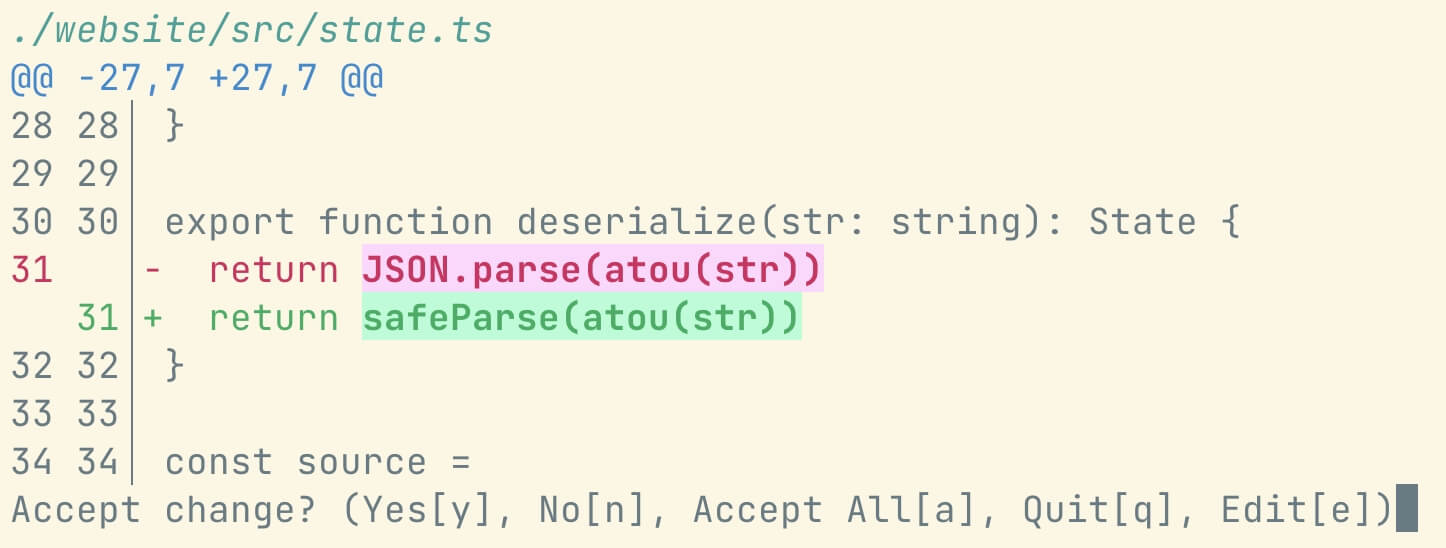
Pressing `y` will accept the rewrite, `n` will skip it, `e` will open the file in your editor, and `q` will quit the interactive mode.
Example:
```bash
ast-grep scan --interactive
```
## JSON Mode
Composability is a key perk of command line tooling. ast-grep is no exception.
`--json` will output results in JSON format. This is useful to pipe the results to other tools. For example, you can use [jq](https://stedolan.github.io/jq/) to extract information from the results and render it in [jless](https://jless.io/).
```bash
ast-grep run -p 'Some($A)' -r 'None' --json | jq '.[].replacement' | jless
```
The format of the JSON output is an array of match objects.
```json
[
{
"text": "import",
"range": {
"byteOffset": {
"start": 66,
"end": 72
},
"start": {
"line": 3,
"column": 2
},
"end": {
"line": 3,
"column": 8
}
},
"file": "website/src/vite-env.d.ts",
"replacement": "require",
"language": "TypeScript"
}
]
```
See [JSON mode doc](/guide/tools/json) for more detailed explanation and examples.
## Run One Single Query or One Single Rule
You can also use ast-grep to explore a proper pattern for your query. There are two ways to try your pattern or rule.
For testing one pattern, you can use `ast-grep run` command.
```bash
ast-grep run -p 'YOUR_PATTERN' --debug-query
```
The `--debug-query` option will output the tree-sitter ast of the query.
To test one single rule, you can use `ast-grep scan -r`.
```bash
ast-grep scan -r path/to/your/rule.yml
```
It is useful to test one rule in isolation.
## Parse Code from StdIn
ast-grep's `run` and `scan` commands also support searching and replacing code from [standard input (StdIn)](https://www.wikiwand.com/en/Standard_streams).
This mode is enabled by passing command line argument flag `--stdin`.
You can use bash's [pipe operator](https://linuxhint.com/bash_pipe_tutorial/) `|` to instruct ast-grep to read from StdIn.
### Example: Simple Web Crawler
Let's see an example in action. Combining with `curl`, `ast-grep` and `jq`, we can build a [simple web crawler](https://twitter.com/trevmanz/status/1671572111582978049) on command line. The command below uses `curl` to fetch the HTML source of SciPy conference website, and then uses `ast-grep` to parse and extract relevant information as JSON from source, and finally uses `jq` to transform our matching results.
```bash
curl -s https://schedule2021.scipy.org/2022/conference/ |
ast-grep -p ' $$$ $AUTHORS
' --lang html --json --stdin |
jq '
.[]
| .metaVariables
| .single.AUTHORS.text'
```
The command above will produce a list of authors from the SciPy 2022 conference website.
:::details JSON output of the author list
```json
"Ben Blaiszik"
"Qiming Sun"
"Max Jones"
"Thomas J. Fan"
"Sebastian Bichelmaier"
"Cliff Kerr"
...
```
:::
With this feature, even if your preferred language does not have native bindings for ast-grep, you can still parse code from standard input (StdIn) to use ast-grep programmatically from the command line.
You can invoke `ast-grep`, the command-line interface binary, as a subprocess to search and replace code.
### Caveats
**StdIn mode has several restrictions**, though:
* It conflicts with `--interactive` mode, which reads user responses from StdIn.
* For the `run` command, you must specify the language of the StdIn code with `--lang` or `-l` flag. For example: `echo "print('Hello world')" | ast-grep run --lang python`. This is because ast-grep cannot infer code language without file extension.
* Similarly, you can only `scan` StdIn code against *one single rule*, specified by `--rule` or `-r` flag. The rule must match the language of the StdIn code. For example: `echo "print('Hello world')" | ast-grep scan --rule "python-rule.yml"`
### Enable StdIn Mode
**All the following conditions** must be met to enable StdIn mode:
1. The command line argument flag `--stdin` is passed.
2. ast-grep is **NOT** running inside a [tty](https://github.com/softprops/atty). If you are using a terminal emulator, ast-grep will usually run in a tty if invoked directly from CLI.
The first condition is quite self explanatory. However, it should be noted that many cases are not tty, for example:
* ast-grep is invoked by other program as subprocess.
* ast-grep is running inside [GitHub Action](https://github.com/actions/runner/issues/241).
* ast-grep is used as the second program of a bash pipe `|`.
So you have to use `--stdin` to avoid unintentional StdIn mode and unexpected error.
:::danger Running ast-grep in tty with --stdin
ast-grep will hang there if you run it in a tty terminal session with `--stdin` flag, until you type in some text and send EOF signal (usually `Ctrl-D`).
:::
#### Bonus Example
Here is a bonus example to use [fzf](https://github.com/junegunn/fzf/blob/master/ADVANCED.md#using-fzf-as-interactive-ripgrep-launcher) as interactive ast-grep launcher.
```bash
SG_PREFIX="ast-grep run --color=always -p "
INITIAL_QUERY="${*:-}"
: | fzf --ansi --disabled --query "$INITIAL_QUERY" \
--bind "start:reload:$SG_PREFIX {q}" \
--bind "change:reload:sleep 0.1; $SG_PREFIX {q} || true" \
--delimiter : \
--preview 'bat --color=always {1} --highlight-line {2}' \
--preview-window 'up,60%,border-bottom,+{2}+3/3,~3' \
--bind 'enter:become(vim {1} +{2})'
```
## Editor Integration
See the [editor integration](/guide/tools/editors.md) doc page.
## Shell Completions
ast-grep comes with shell autocompletion scripts. You can generate a shell script and eval it when your shell starts up.
The script will enable you to smoothly complete `ast-grep` command's options by `tab`bing.
This command will instruct ast-grep to generate shell completion script:
```shell
ast-grep completions
```
`` is an optional argument and can be one of the `bash`, `elvish`, `fish`, `powershell` and `zsh`. If shell is not specified, ast-grep will infer the correct shell from environment variable like `$SHELL`.
The exact steps required to enable autocompletion will vary by shell. For instructions, see the [Poetry](https://python-poetry.org/docs/#installing-with-the-official-installer) or [ripgrep](https://github.com/BurntSushi/ripgrep/blob/master/FAQ.md#complete) documentation.
### Example
If you are using zsh, add this line to your `~/.zshrc`.
```shell
eval "$(ast-grep completions)"
```
## Use ast-grep in GitHub Action
If you want to automate [ast-grep linting](https://github.com/marketplace/actions/ast-grep-gh-action) in your repository, you can use [GitHub Action](https://github.com/features/actions), a feature that lets you create custom workflows for different events.
For example, you can run ast-grep linting every time you push a new commit to your main branch.
To use ast-grep in GitHub Action, you need to [set up a project](/guide/scan-project) first. You can do this by running `ast-grep new` in your terminal, which will guide you through the process of creating a configuration file and a rules file.
Next, you need to create a workflow file for GitHub Action. This is a YAML file that defines the steps and actions that will be executed when a certain event occurs. You can create a workflow file named `ast-grep.yml` under the `.github/workflows/` folder in your repository, with the following content:
```yml
on: [push]
jobs:
sg-lint:
runs-on: ubuntu-latest
name: Run ast-grep lint
steps:
- name: Checkout
uses: actions/checkout@v4
- name: ast-grep lint step
uses: ast-grep/action@v1.4
```
This workflow file tells GitHub Action to run ast-grep linting on every push event, using the latest Ubuntu image and the official ast-grep action.
The action will check out your code and run [`ast-grep scan`](/reference/cli#ast-grep-scan) on it, reporting any errors or warnings.
That's it! You have successfully set up ast-grep linting in GitHub Action. Now, every time you push a new commit to your main branch, GitHub Action will automatically run ast-grep linting and show you the results. You can see an example of how it looks like below.

For more information, you can refer to the [ast-grep/action](https://github.com/ast-grep/action) repository, where you can find more details and options for using ast-grep in GitHub Action.
## Colorful Output
The output of ast-grep is exuberant and beautiful! But it is not always desired for colorful output.
You can use `--color never` to disable ANSI color in the command line output.